
How to Troubleshoot a Samsung Galaxy SD Card That Is Not Working
A Galaxy phone that suddenly says its SD card is missing, unreadable, or full can be stressful—especially if it holds your photos, videos, or music. Before you format the card or reset your phone, protect your files and work through a few simple checks. This guide explains how to diagnose common Samsung Galaxy microSD problems, recover access safely, and understand what iPhone settings and iOS versions mean for expandable storage.
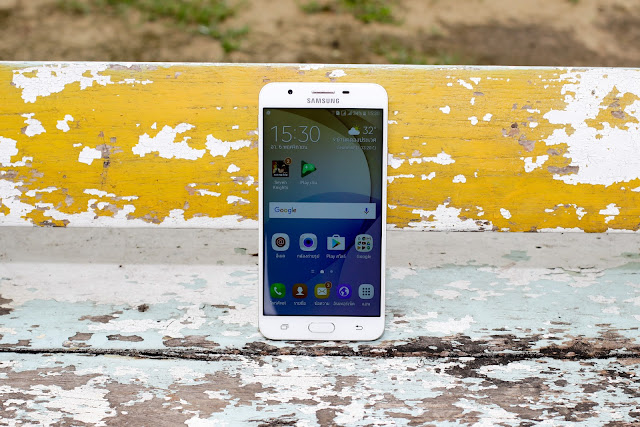
Samsung Galaxy phones and tablets have supported microSD cards on many—but not all—models. Support depends on the exact device, so check its specifications or the “About phone” information before buying a card. A card that is not detected may be faulty, improperly seated, incompatible, or affected by a software issue.
Expandable storage is useful if you save a lot of music, photos, or videos. If you also use storage cards in other devices, see 🔥 Top 5 microSD Cards for Raspberry Pi 5 in 2025: Speed, Reliability, and Value. Card recommendations for a Raspberry Pi do not automatically guarantee compatibility with a Galaxy device, so check Samsung’s requirements for your specific model.
Start with These Safe SD Card Checks
If your Samsung Galaxy reports that the card is blank, missing, or removed unexpectedly, avoid formatting it until you have checked whether your files can be accessed elsewhere. Formatting erases the card’s contents.
- Restart the phone. A restart can clear a temporary detection problem.
- Power the phone off before removing the card. Use the ejector tool carefully, inspect the card and tray for visible damage or debris, and reseat it securely.
- Test the card in a computer with a card reader, or in another compatible device. If it is readable, copy important files to a safe location right away.
- Check the phone’s storage settings. Menu names vary by model and Android version; look under Settings > Battery and device care > Storage or search Settings for “SD card.”
If the card works in another device but not in your Galaxy, the phone, card tray, software, or compatibility may be the cause. If no device can read it, the card may be damaged. Do not keep trying repairs that could overwrite its data if the files matter.
Fix a Samsung Galaxy That Does Not Detect the SD Card
Some owners describe this as a Galaxy S5 or S6 failing to show photos after an update. Those older models and software versions are not representative of every current Galaxy phone, but the basic troubleshooting steps still apply: verify the card, check compatibility, and rule out a temporary software issue.
Check card compatibility and condition
Confirm the maximum card capacity and supported formats in the specifications for your exact Galaxy model. A card that is not supported—or has a damaged file system—may appear blank or unreadable. If you can access the files on a computer, back them up before making changes. Avoid switching formats or formatting the card unless you have a separate copy of everything you need.
Install updates and test for app conflicts
Check for available software updates through your phone’s Settings. If the problem started after installing an app, uninstall recently added storage, security, or file-management apps one at a time and test the card again. On supported models, you can also start the phone in Safe mode to see whether a downloaded app is involved; the steps for entering Safe mode vary by model.
Clearing the system cache is not a universal fix, and the available recovery-menu options differ across Galaxy models. Avoid selecting Wipe data/factory reset by mistake. A factory reset should be a last resort, after a full backup, because it erases data on the phone and may not fix a failing card or damaged card slot.
What to Do If the Card Keeps Disconnecting
An “SD card removed unexpectedly” message can result from a loose fit, damaged card or tray, or a software issue. Turn off the phone, reseat the card, and test it in another device. If another known-good, compatible card also disconnects in the Galaxy, arrange service or contact Samsung support; the phone’s tray or card reader may need inspection.
- Back up readable files as soon as possible.
- Do not remove the card while the phone is transferring files.
- Replace a card that is physically damaged or repeatedly fails in multiple devices.
- Do not assume a factory reset will repair a hardware fault.
Recover Lost Photos and Other Files Carefully
First check your backups and synced services, such as Google Photos or Samsung Cloud where available. If the card is readable, copy its contents to a computer before attempting recovery. If it is not readable and the files are valuable, consider a reputable data-recovery professional. Repeatedly writing to or formatting a failing card can reduce the chance of recovering files.
Recovery software varies in effectiveness, and no tool can guarantee that files will be restored. If you choose an app or desktop program, research its current compatibility, privacy practices, and pricing, and avoid saving recovered files back onto the same card.
iPhone Settings and iOS Versions: What’s Different?
Most iPhones do not have a built-in microSD card slot, so there is no iOS setting that enables a Galaxy-style SD card. To free space, open Settings > General > iPhone Storage to review recommendations and app usage. For photos, check Settings > [your name] > iCloud > Photos and confirm your sync and storage options.
iOS menus and features can differ by iPhone model and installed iOS version. Check Settings > General > Software Update for the version available to your device. External storage may be accessible through a compatible adapter or drive and the Files app, but compatibility depends on the accessory, connection, and iPhone. External drives are not the same as an internal microSD card.
Conclusion
When a Samsung Galaxy SD card stops working, protect your data first: restart the phone, reseat the card with the device powered off, test it elsewhere, and back up anything readable. Check model-specific compatibility before formatting or resetting, and seek help if multiple cards fail in the same phone. iPhones handle storage differently, so use iPhone Storage settings or compatible external storage rather than looking for an SD card menu.
If you are comparing removable and external storage for other devices, read How to Connect and Use an SSD with Raspberry Pi 5 for Faster Storage.